Scott
Expanding your digital product into international markets is a massive growth opportunity, but the process of preparing your interfaces for global audiences is notoriously difficult. Designing for multiple regions requires more than simply converting text from one language to another; it requires restructuring layouts, adjusting component boundaries, and managing developer resource files. If your design team relies on manually copying and pasting copy, your launch timelines will inevitably suffer. This guide explores how automated, canvas-native tools let you translate your interfaces seamlessly, keep your layout clean, and significantly speed up your development cycle.
Part 1: The bottlenecks of traditional UI localization workflows
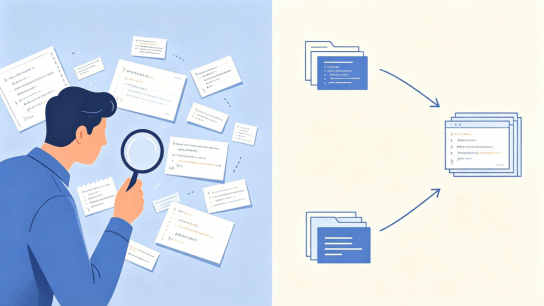
For years, product design teams have approached global expansion with fragmented workflows. Many organizations treat ui localization as an afterthought, sending design screenshots to external translators. Once the translated text is returned, designers must manually copy the translated strings back into their workspace.
This process is slow, expensive, and highly prone to human error. Manual ui translation involves copying and pasting strings from a spreadsheet into design layers, which quickly leads to broken layouts and misplaced copy.
| THE DISCONNECTED LOCALIZATION LOOP |
|
These localization activities, often referred to as l10n, must be planned from the very beginning of a product cycle. While internationalization or i18n ensures your software's codebase can handle multiple regional settings, the design file must also adapt visually.
If your design workspace remains isolated from your translation assets, you will lose hours fixing overlapping text and misaligned buttons. Instead of using a generic web browser translation tool, teams are turning to a specialized ai translator built directly into their layout workspaces to manage these adjustments dynamically.
Part 2: Enter Pixso AI: Canvas-native translation and intelligent UI generation
To solve these layout bottlenecks, Pixso integrates smart translation and automated design capabilities directly into its collaborative vector canvas. Operating as a canvas-native ai translator, Pixso allows designers to run localized edits without leaving the artboard. This native integration shifts ui localization from a slow administrative task into an agile development stage.
PIXSO SMART TEXT CONTROLS
Select Text/Frame ➔ Floating Toolbar ➔ Smart Text Option
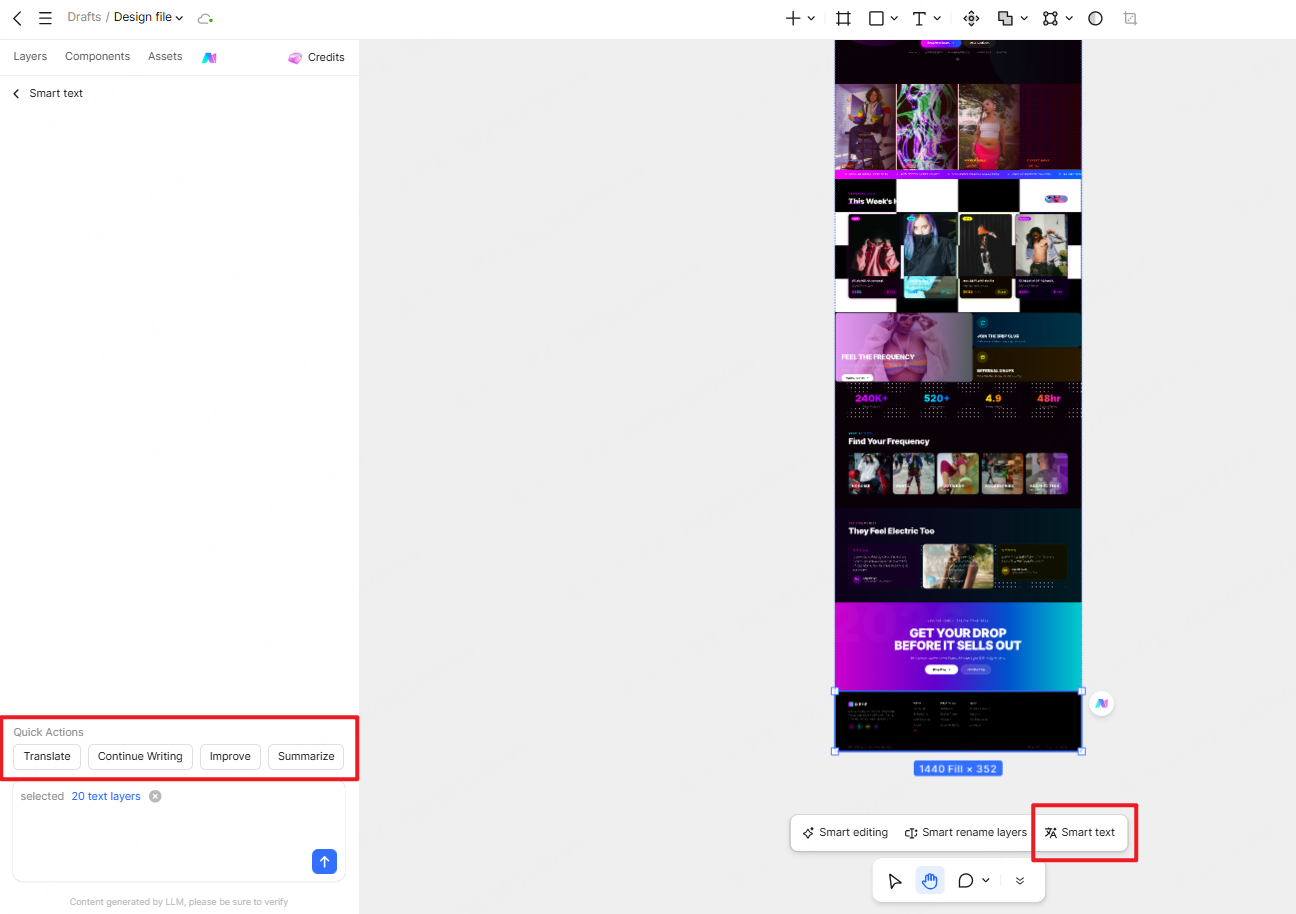
Quick Actions Available:
- Translate: Instant, context-aware translation
- Continue Writing: AI-assisted text generation
- Improve: Copy refinement and tone adjustments
- Summarize: Streamlines long text for small
Canvas-Native Translation
To translate an element in Pixso, you select your design frame, view the floating toolbar at the bottom of the screen, click the Smart text option, and choose Translate from the Quick Actions menu. The system lets you choose between translating a single text block or executing a batch ai translation across dozens of frames.
You can instantly generate parallel multi-language artboards side-by-side, allowing you to preview how your design looks in English, Spanish, Japanese, or German simultaneously. Furthermore, any changes made to the master component automatically sync across all translated versions, removing the need to edit pages individually.
Intelligent UI Generation
Beyond translation, Pixso's AI panel allows you to generate new layouts, design systems, and custom mockups directly from simple prompts. If your translated text requires a completely different layout style, you can use the AI assistant to generate alternative card structures, form patterns, or landing page layouts in seconds.
By keeping copy adjustments and layout generation inside the same vector workspace, Pixso eliminates the need to switch between external translation software and your core design editor.
Part 3: Solving the layout stretching and RTL mirroring nightmare
One of the most frustrating aspects of translating a interface is that text length varies dramatically across languages. German and Spanish translations can be up to 30% longer than their English equivalents, while Asian languages require adjusted vertical line heights to remain readable.
Handling script variation is one of the most resource-intensive challenges of l10n for mobile and web apps. Without automated layout rules, standard ui translation inevitably breaks margins and forces tedious manual resizing.
Auto-Layout Adaptation
Pixso resolves this issue with built-in auto-layout tools. When you run a translation, the parent frames, buttons, and containers adjust their padding and margins dynamically to accommodate the new text length.
By using an ai translator that understands geometric bounds, you can set rules to shrink font sizes or swap copy for shorter synonyms if a translation exceeds your component limits.
Bidirectional Text and RTL Mirroring
For languages like Arabic or Hebrew, the entire layout structure must be flipped to follow a Right-to-Left (RTL) reading flow. This means that navigation bars, icons, image placements, and back buttons must be mirrored precisely.
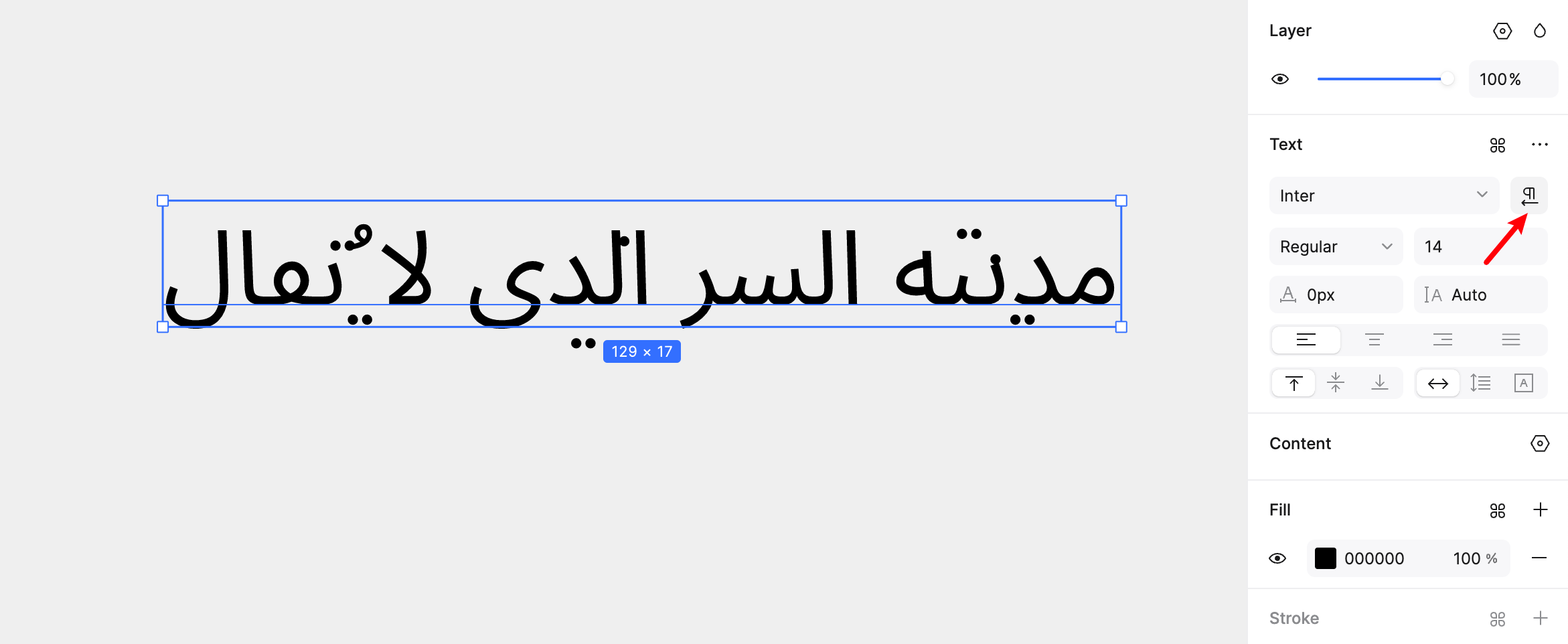
Pixso features robust bidirectional text support, allowing you to switch your entire artboard's layout direction with a single click. The system mirrors your components and text boxes perfectly, saving your team from manually building separate layouts for RTL markets.
Part 4: Industry glossaries, version control, and multilingual collaboration
Integrating ai translation into your daily pipeline requires more than just translating vocabulary; it requires context. A literal word-for-word translation can often sound awkward or incorrect, especially when dealing with industry-specific terminology in fintech, medical software, or complex B2B dashboards.
Successful ui localization relies on building a consistent voice across languages. Rather than relying on rigid algorithms, a design-focused ai translator should support custom team memories and specialized glossaries to maintain brand accuracy.
| PIXSO COOPERATIVE LOCALIZATION SYSTEM |
|
- Custom Industry Glossaries: Pixso supports the integration of custom team glossaries and translation memory libraries. This ensures that unique technical terms, brand names, and button actions remain consistent across every version of your product.
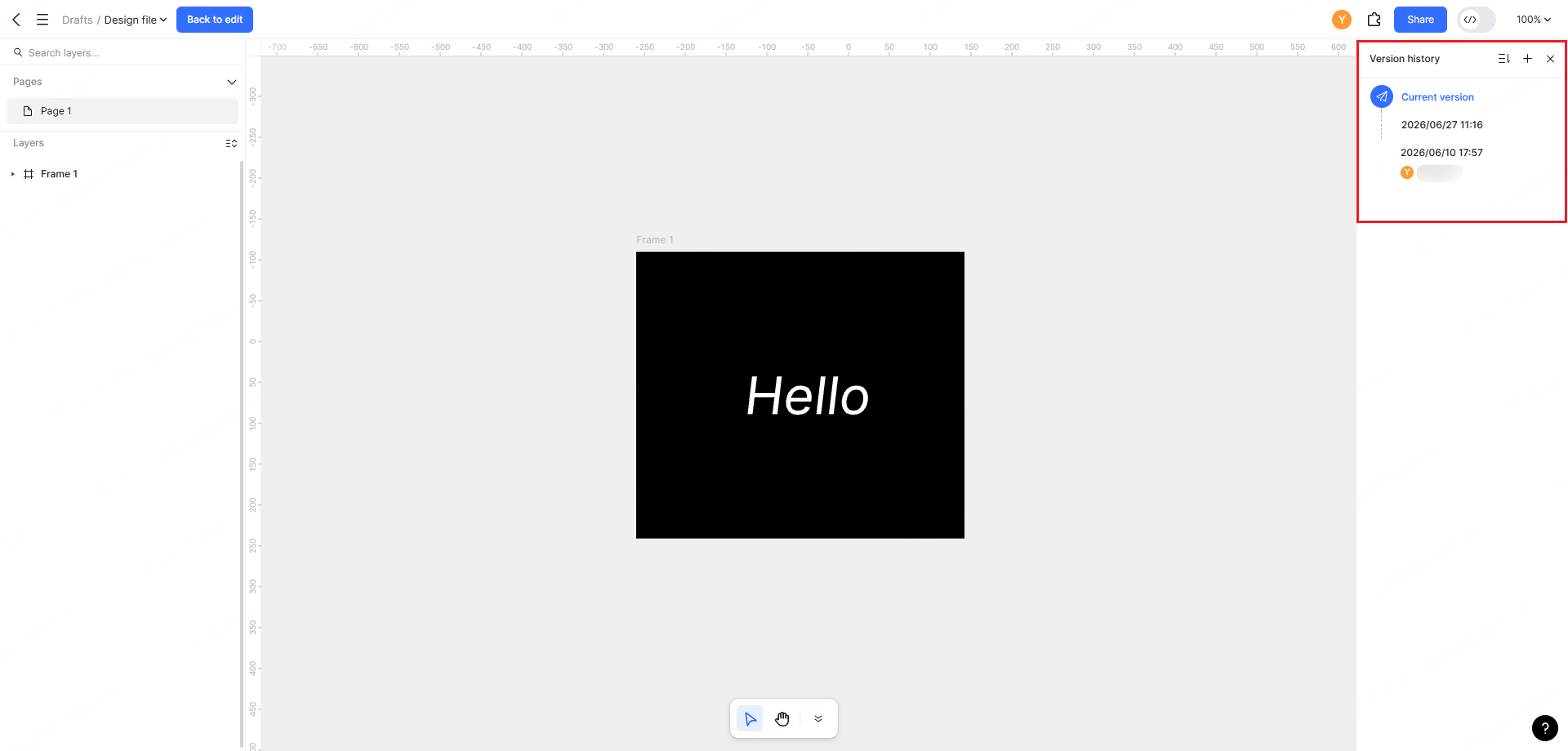
- Version History and Rollbacks: When translating multiple pages, keeping track of changes is critical. Pixso automatically archives translation history, allowing you to roll back to past copy variations or compare layout adjustments over time.
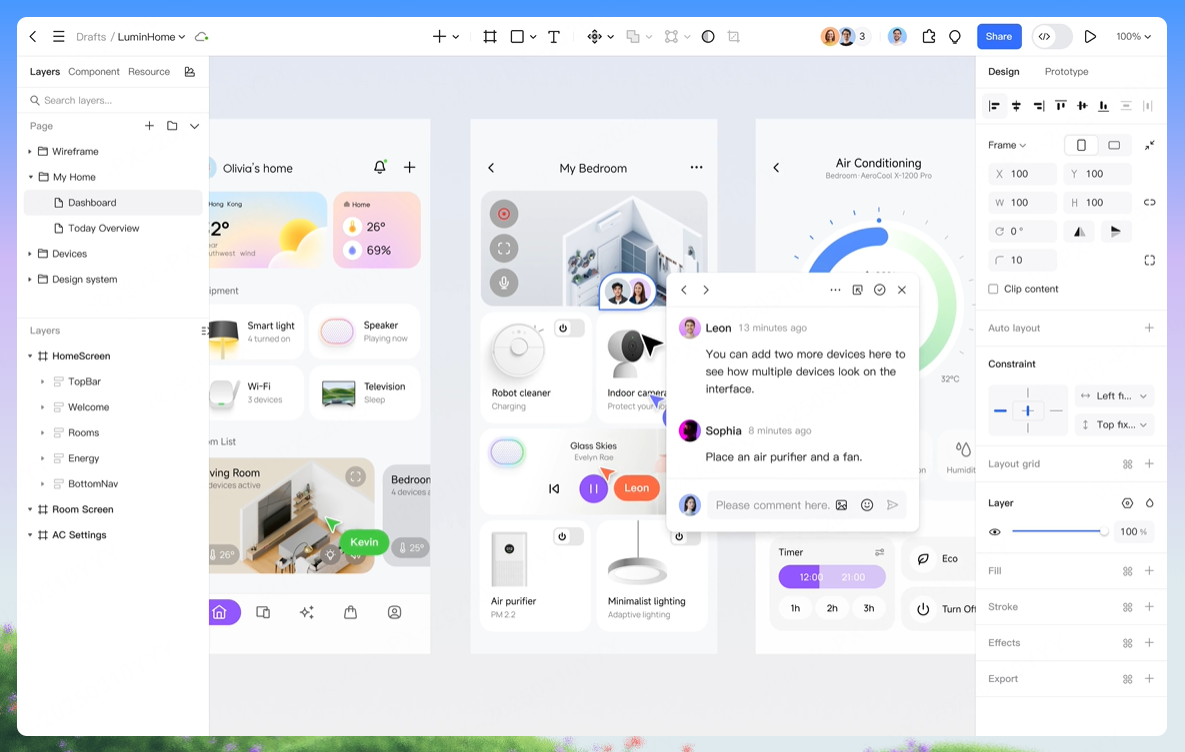
- Real-time Multilingual Review: Pixso’s collaborative cloud workspace allows your local copywriters, designers, and regional managers to review translated mockups simultaneously. Team members can leave sticky comments directly on the canvas, pointing out regional styling issues or tweaking translations in real time.
Part 5: Standardizing i18n handoffs and data privacy compliance
Once your designs are translated and approved, the next challenge is handing them off to developers. If your engineering team has to manually copy-paste translated strings from a static PDF or PNG mockup into their code, the process breaks down immediately.
Automated i18n Resource Export
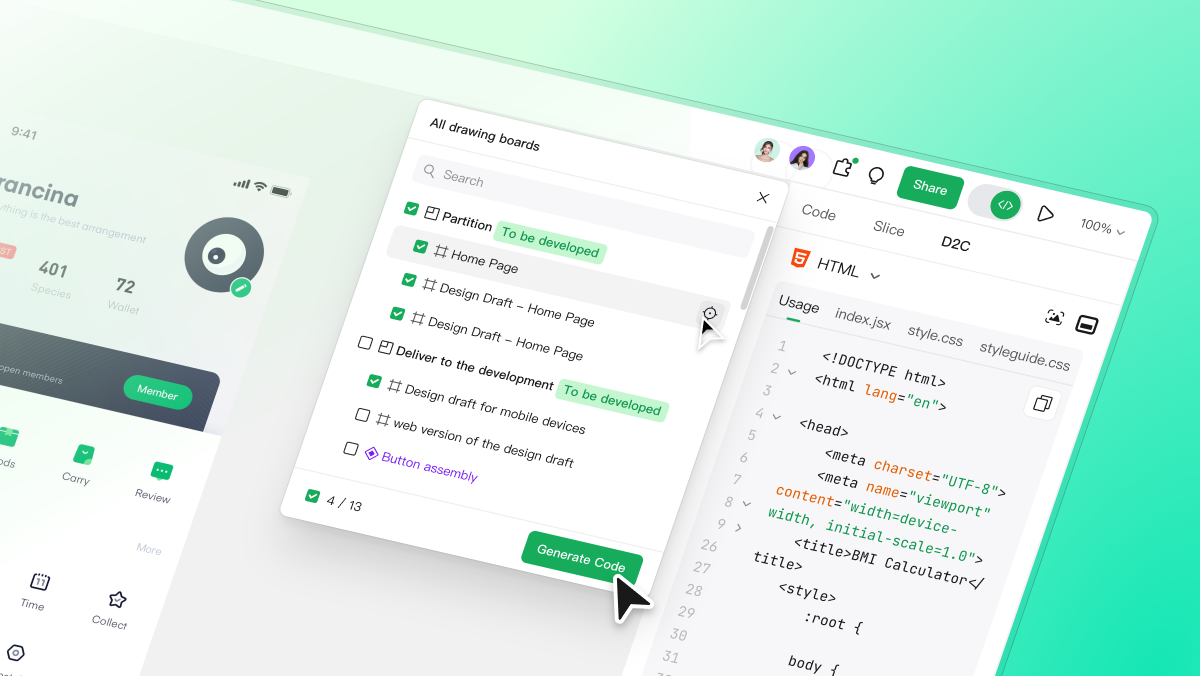
To solve this, Pixso streamlines the i18n handoff process. Designers can export approved translation strings directly into standardized localization formats, including React, Vue, Android XML, and iOS string files.
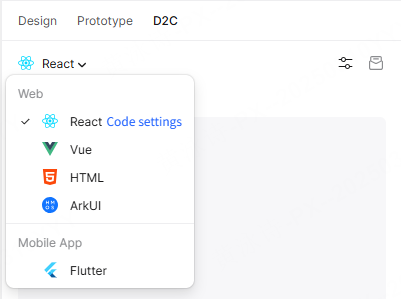
This bi-directional sync keeps your codebase aligned with design changes, reducing manual i18n mapping errors and saving hours of engineering time. Pixso unifies the entire workflow, keeping ui translation and layout adjustments completely synchronized.
SECURE LOCALTRANSLATION PIPELINE
Sensitive Project Copy ➔ On-Premise Pixso AI Server ➔ Safe Output
Alltranslation queries processed entirely inside the company intranet
Private and Secure Translation Compliance
When you run translation queries on a standard cloud-based ai translator, your copy is sent to external servers. For healthcare apps, financial platforms, or government portals, uploading sensitive text or private user screens to public clouds is a massive security risk.
To solve this, Pixso offers on-premise private deployment. You can host Pixso's entire design suite and AI models on your own local servers or secure private cloud. All translations are processed inside your corporate network, ensuring complete compliance with GDPR and HIPAA regulations.
Part 6: Actionable checklist for building globally ready UI designs
To help your team transition from slow manual methods to an automated, intelligent workflow, use this systematic guide to organize your next l10n design run:
| Phase | Goal | Actions |
| Phase 1: Setup | Framework Preparation | Apply dynamic auto-layouts to all buttons, menus, and text containers. Define your primary i18n keys early. |
| Phase 2: Translate | Contextual Translation | Select your design frame, click the floating toolbar's Smart text option, and use Translate to generate multi-language artboards side-by-side. |
| Phase 3: Restructure | Script Adaptation | Verify line heights for Asian scripts, check text boxes for character limits, and use bidirectional flipping for RTL scripts. |
| Phase 4: Collaborate | Consistency Review | Share a review link with local linguists and developers. Use Pixso's shared team memory to standardize specialized terms. |
| Phase 5: Handoff | Code Integration | Export localized resource strings (such as JSON or XML files) directly from your workspace to your developer repository. |
By following these structured steps, your product team can quickly adapt layouts to fit any target market, maintain high security, and avoid the visual errors that frequently derail international launches.
Conclusion
Automating your translation workflow is essential for running fast, successful global product campaigns. By replacing traditional spreadsheets with canvas-native tools, dynamic layout engines, and the secure collaborative workspace of Pixso, you can eliminate manual errors and keep your layouts looking polished in every region. Continuous ai translation saves days of labor by bridging the gap between copywriters, designers, and developers. Apply these practical l10n tips to your next project, build secure localization pipelines, and launch your global products with confidence.
![[Latest] UI Design Principles](https://cms.pixso.net/images/articles/principles-of-user-interface-design.png)