Scott
In today's digital era, physical business cards remain one of the most powerful networking tools available. A beautifully crafted card not only shares your contact details but also reflects your professional brand. However, one of the biggest challenges designers face when moving from digital mockups to physical print is getting the business card size exactly right. A minor error in centimeter or millimeter calculations can result in cropped text, blurry graphics, or off-center layouts. In this comprehensive guide, we will break down standard dimensions globally, explain how to set up your design correctly, and introduce how modern collaborative design tools like Pixso streamline this entire workflow.
Part 1. Why Pixso is the Ultimate Tool for Modern Business Card Design
Traditionally, designers had to rely on heavy offline vector software or struggle with web-based UI tools that lack print-ready capabilities. This is where Pixso, a collaborative UI/UX and vector design platform, changes the game. Unlike traditional UI tools that force you to manually calculate dimensions, Pixso bridges the gap between digital precision and physical print standards.
Here is how Pixso addresses the common pain points of business card design:
- Global Standard CM/MM Preset Canvases: Pixso eliminates the tedious math of converting inches to centimeters. Its canvas settings allow you to switch units with a single click. Furthermore, it comes with built-in presets for North American, European, and Asia-Pacific card standards. When you select a preset, Pixso automatically generates the bleed, trim, and safety guides, saving you from setting up layout grids manually.
- Print-Compliance Verification: One of the biggest headaches when printing business cards is color shift or low-resolution outputs. Pixso's robust export engine allows you to work with print-ready parameters. You can easily export at a crisp 300 DPI resolution. Furthermore, with its advanced vector engine, you can review design assets, check color boundaries, and ensure small text layers remain perfectly legible before sending them to the printer.
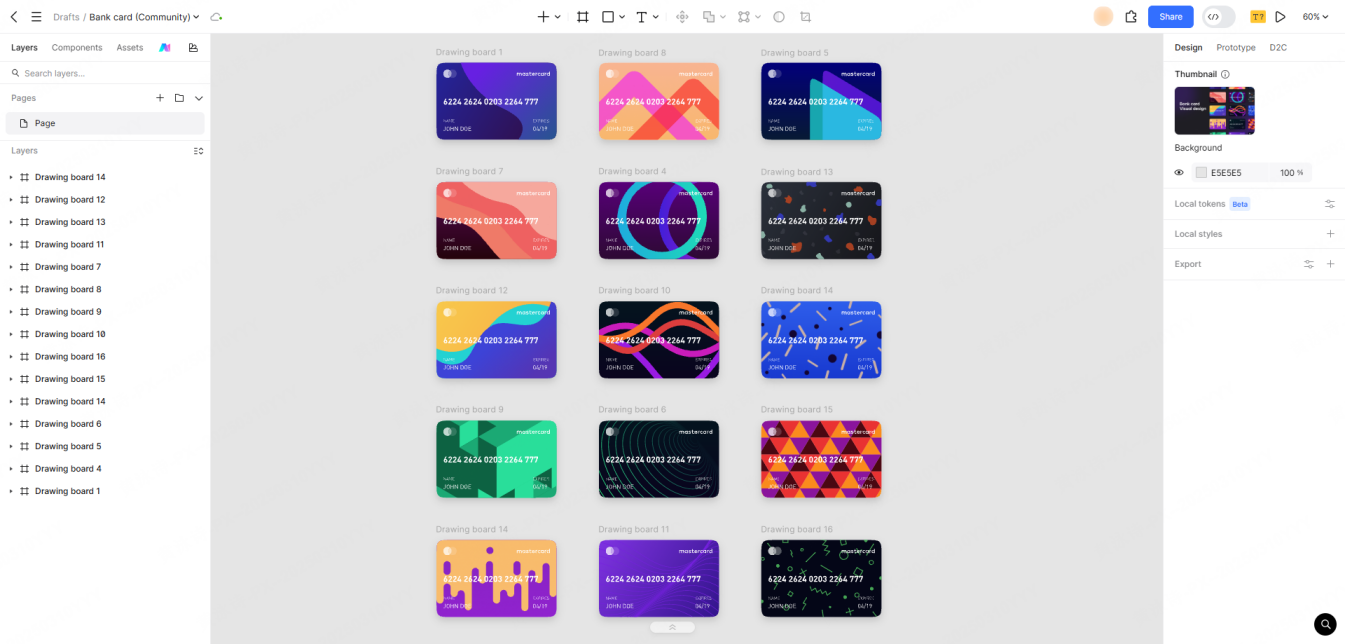
- Pre-built Business Card Templates: Rather than starting from scratch, Pixso offers a library of professional templates to create stunning business cards quickly. These designs feature standardized English typographic hierarchies, commercial-use sans-serif typography, and clean social media vector icons. You can choose from horizontal, vertical, or double-sided layouts to match your industry.
- Integrated Vector QR Codes: In modern business card design, a QR code is practically mandatory. Pixso features integrated vector QR tools that let you generate clean, resizable QR codes directly on your canvas. Because they are vector-based, they will maintain maximum sharpness, even on textured or laminated cardstock.
- Efficient Component Reuse and Batch Export: If you are designing for an entire company, manual editing is a nightmare. Pixso lets you create a master component for your card layout. You can update the brand colors or logo once, and it propagates across all employee cards. When ready, you can export the entire set in one click, complete with print-ready margins.
By combining the collaborative, cloud-based speed of modern UI tools with the precise pre-press standards of print design, Pixso offers an all-in-one closed-loop advantage. It eliminates the need to switch between multiple software programs to get your design from idea to print.
Part 2. Global Business Card Size in CM: A Regional Guide
Standard sizes for business cards are not universal. A standard card in New York will not fit perfectly into a cardholder in Paris or Tokyo. To avoid awkward sizing issues, you must know the standard business card size in centimeters for your target market.
Here is a quick-reference table for standard dimensions globally:
| Region | Dimensions in CM | Dimensions in MM | Dimensions in Inches | Common Uses |
| North America (US & Canada) | 8.89 x 5.08 cm | 88.9 x 50.8 mm | 3.5 x 2.0 in | Standard US wallets and holders |
| Europe (UK, Germany, France) | 8.50 x 5.50 cm | 85.0 x 55.0 mm | 3.346 x 2.165 in | Credit card-sized, fits standard EU wallets |
| Asia-Pacific (Japan, China) | 9.00 x 5.40 cm | 90.0 x 54.0 mm | 3.543 x 2.125 in | Standard Eastern Asia card size |
| International Standard (ISO 7810) | 8.56 x 5.39 cm | 85.6 x 53.98 mm | 3.370 x 2.125 in | ID cards and bank card sizes |
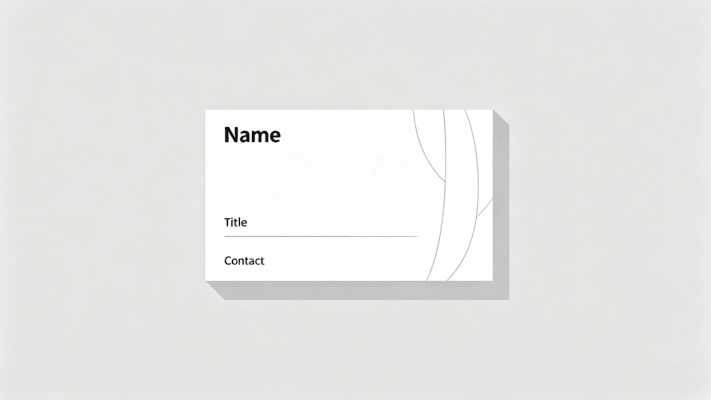
Selecting the correct business card size is critical. If your card is too large, recipients might throw it away because it does not fit into their wallets. If it is too small, it may get lost among other papers. Using Pixso, you can instantly swap between these standard business card size presets on your canvas, ensuring that your layout scales correctly no matter where your audience is based.
Part 3. Understanding Bleed, Trim, and Safety Margins in CM
When preparing business cards for a professional printing press, you cannot simply design to the exact physical dimensions. You must account for the mechanical tolerance of industrial paper cutters. This is why understanding the relationship between bleed, trim, and safety margins in centimeters is crucial for any business card design.
- The Bleed Zone: This is the outermost edge of your design document. When industrial blades cut through stacks of printed sheets, slight shifts can occur. If your background color or image stops exactly at the card boundary, any minor cutting shift will leave an ugly white line. To prevent this, extend your background elements at least 0.3 cm (3 mm) beyond the cut line.
- The Trim Line: This is the actual boundary of the finished card. For a standard US card, the trim line is 8.89 x 5.08 cm.
- The Safety Zone: Keep all critical elements—such as names, phone numbers, email addresses, and logos—at least 0.3 cm (3 mm) inside the trim line. If a cutting blade shifts slightly inward, your vital contact information won't get cut off.
Setting up these three layers of reference lines manually in digital design tools can be incredibly frustrating. This is why utilizing a standard business card size template is highly recommended. Pixso simplifies this by automatically generating these nested reference frames, letting you focus entirely on your creative layout without worrying about pre-press math.
Part 4. Core Principles of Professional Business Card Design
Great business cards are much more than a block of text on a piece of cardboard. They are micro-portfolios of your personal or corporate brand. To create an impactful business card design, follow these essential guidelines:
Establish a Clear Typographic Hierarchy
Your name or company logo should be the most prominent element. Use a clean, legible sans-serif font for contact details to ensure readability at small sizes. Avoid using more than two font families, as this can make the card look cluttered.
Embrace Negative Space
Do not feel obligated to fill every square centimeter of the card. Negative space gives the viewer's eyes a place to rest and makes the remaining information stand out. A crowded card looks unprofessional and is difficult to read.
Keep Vectors Crisp
Any icon, social media logo, or graphic element must be a vector. Raster images (like JPEGs) will pixelate when printed at a small business card size. Using a vector-based platform like Pixso ensures that your graphics scale infinitely without any loss of quality.
Design for Scannability
If you decide to include a QR code, make sure it is rendered in high contrast (preferably dark on a light background). Keep the surrounding area clean, and test the scale of the code before finalizing your print run to ensure standard smartphone cameras can read it easily.
Part 5. Tutorial: How to Design and Export Print-Ready Cards with Pixso
Ready to build your own? Let's walk through the exact process of creating standard-compliant business cards using the intuitive features of Pixso:
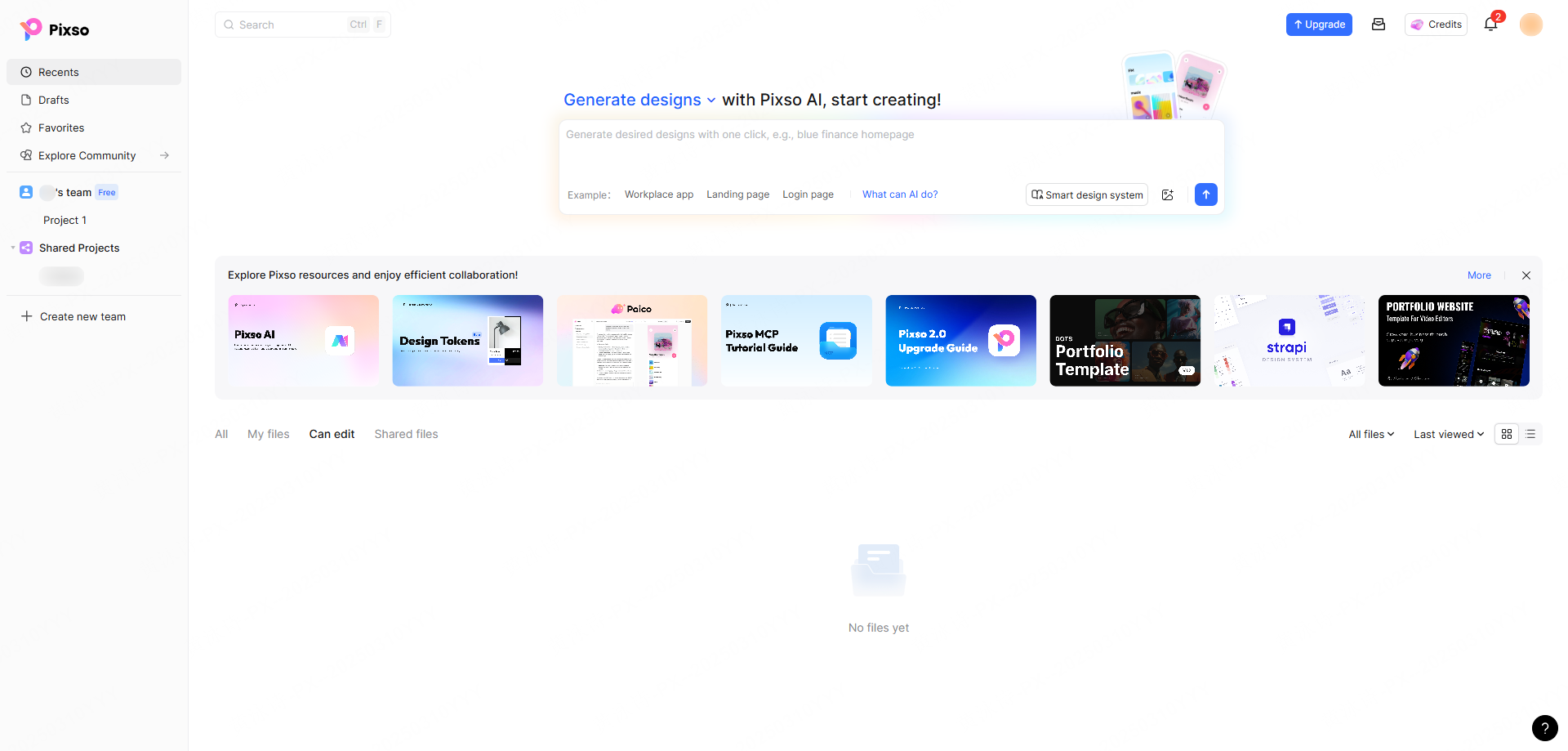
Step 1: Create a New File and Set Units
Open Pixso and start a new project. Navigate to your canvas settings and toggle the ruler unit from pixels to centimeters or millimeters.
Step 2: Select a Preset Frame
Choose the standard dimensions frame corresponding to your region. For instance, if you are designing for a European client, select the 8.5 x 5.5 cm preset.
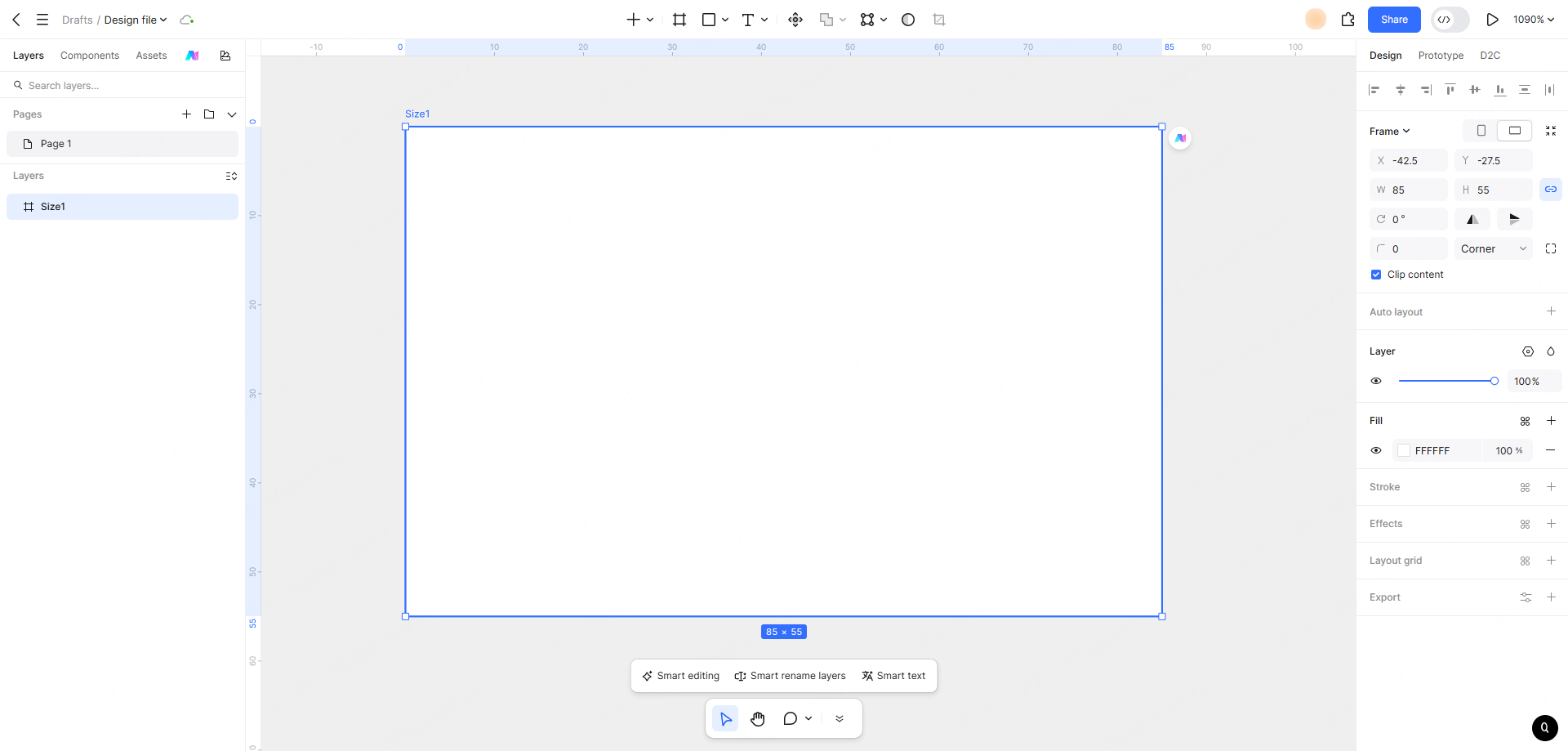
Step 3: Enable Bleed and Margins
Check the boxes to enable the automatic 0.3 cm bleed line and safety margin guides. Your canvas will now display the clear physical boundaries of your card.
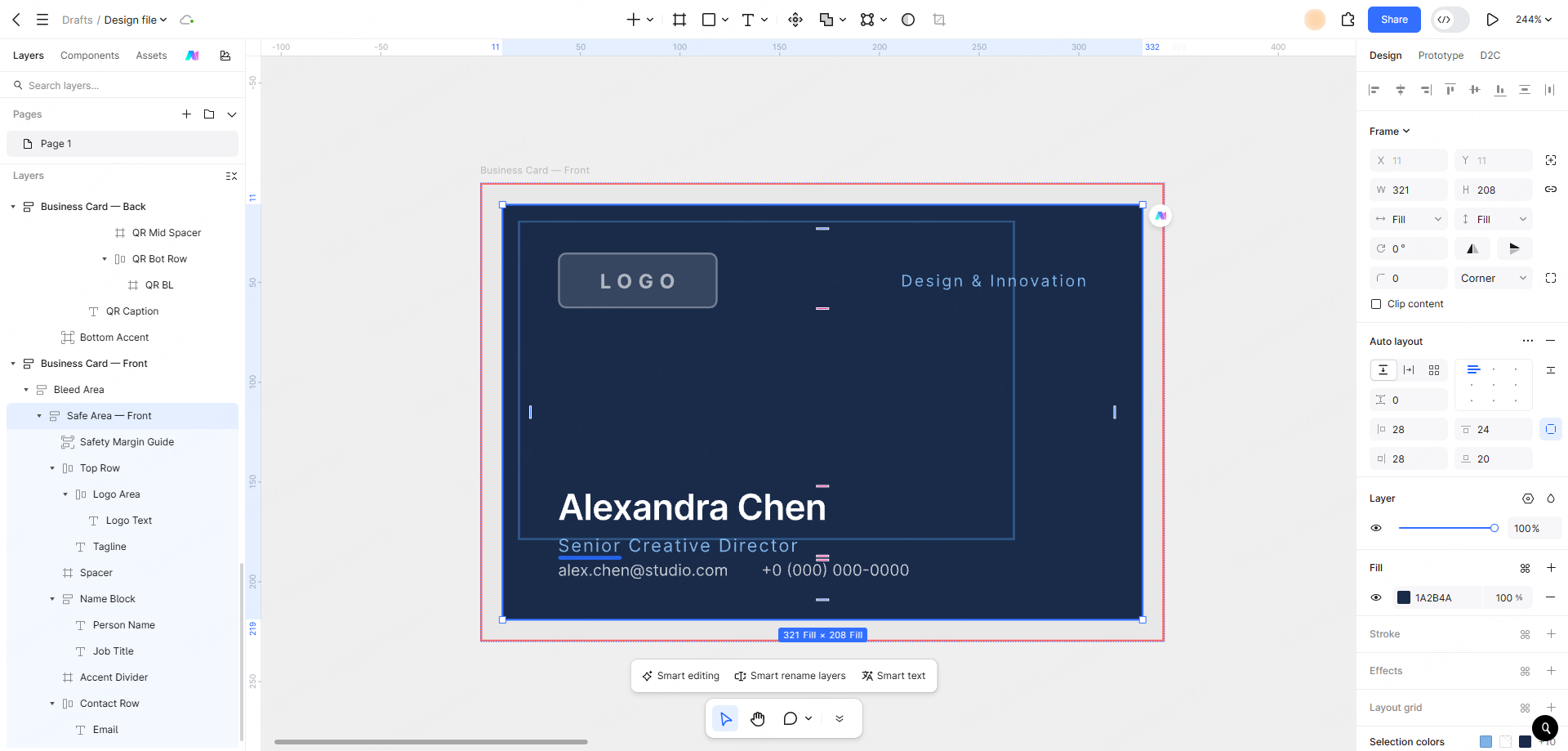
Step 4: Build Your Layout
Drag and drop your vector logo, apply your brand colors, and add text layers. You can browse Pixso’s resource community to find pre-formatted text structures if you need layout inspiration.
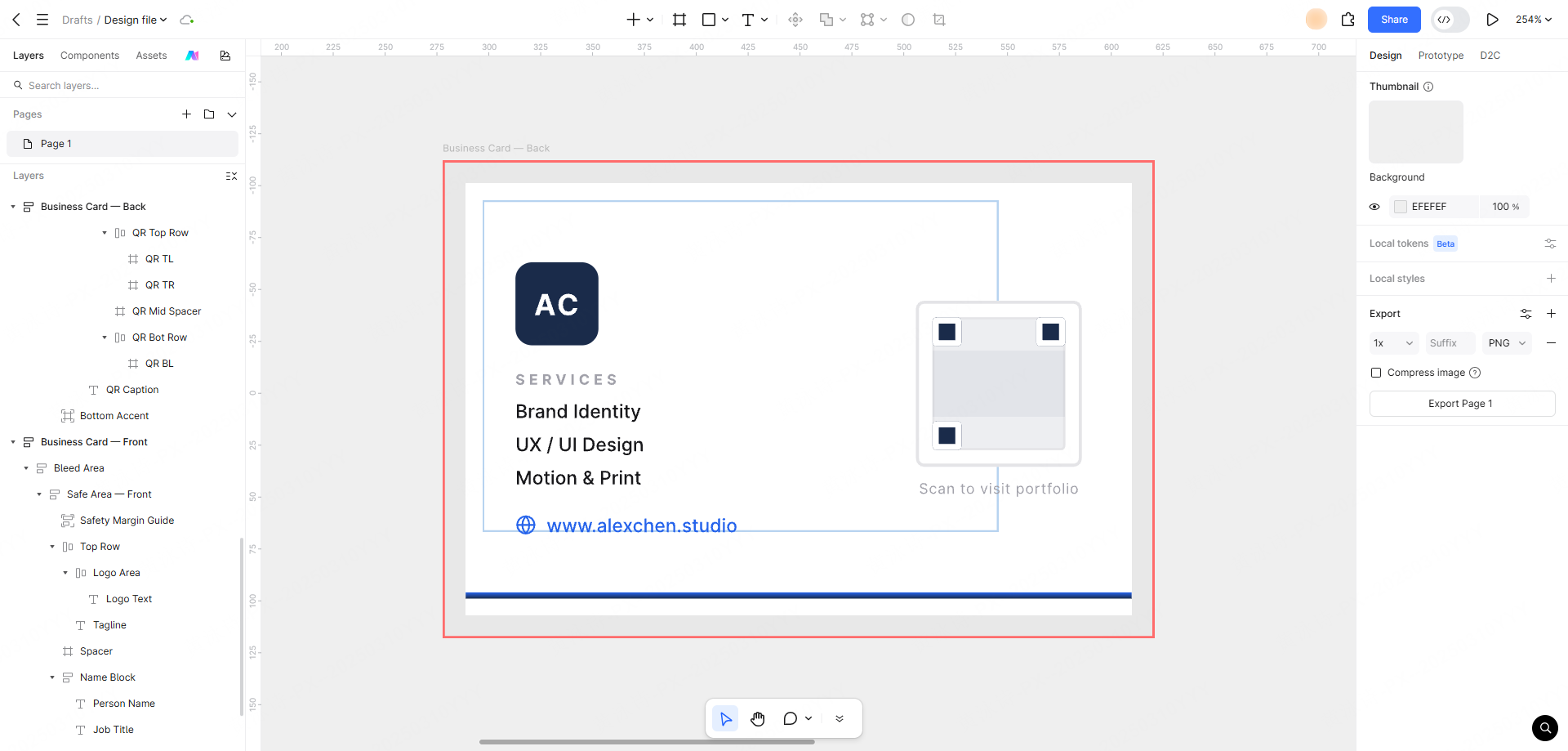
Step 5: Prepare and Place a QR Code
Create a QR code in advance using any QR code generator by inputting your website URL or digital portfolio link. Once generated, add the QR code to your design and position it within the safety boundary. Ensure it is properly scaled and clearly readable when printed.
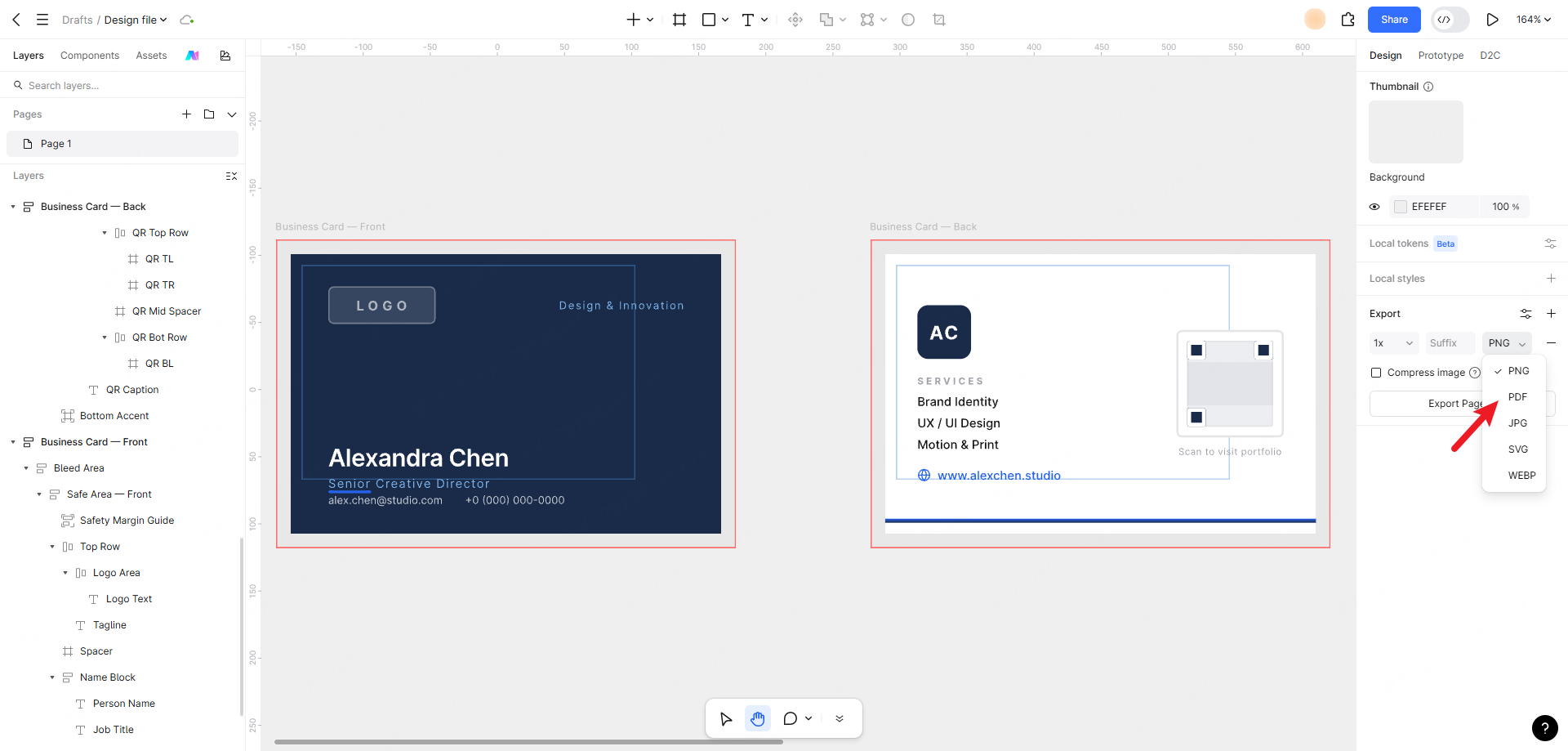
Step 6: Export a Print-Ready PDF
Once your layout is perfect, go to the Export panel. Choose PDF format, ensure the resolution is set to high-fidelity, and toggle on the option to export with bleed. Pixso will generate a perfect, high-resolution vector PDF that any professional print shop can accept without further adjustment.
Conclusion
Nailing the correct business card size in cm is a simple but vital step toward establishing a credible professional presence. By understanding regional size standards, respecting bleed and safety margins, and maintaining clean design principles, you can create business cards that leave a lasting, positive impression. Modern collaborative design platforms like Pixso take the technical headache out of the process, offering automatic standard templates, vector QR generation, and precise print-ready export options. Whether you are crafting a single personal card or managing a global brand's employee collateral, designing with the right tools ensures your physical print matches your creative vision perfectly.